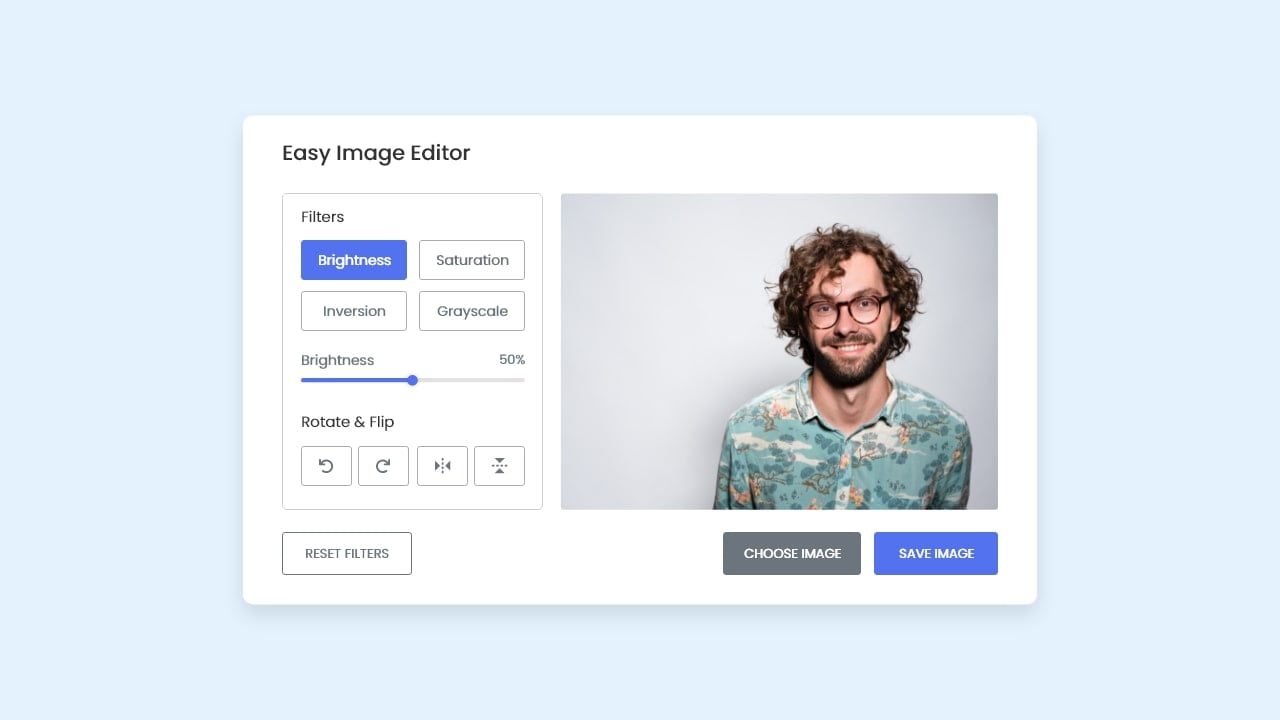
Large images can slow down a page even when they appear small on screen. The most effective compression workflow combines correct pixel dimensions with a suitable format and a carefully chosen quality level. Compression alone cannot compensate for uploading a full-resolution camera image into a small card.
Resize before compressing
Measure the largest size at which the image is displayed. A card that never exceeds 900 pixels wide rarely needs a 5000-pixel source in production. Keep a high-quality original elsewhere, then create a delivery copy for the website.
Use the photo editor to resize the image while preserving its aspect ratio. This removes unnecessary pixels before the quality slider is applied and usually produces the biggest reduction in file size.
Pick the right format
- JPG works well for photographs, gradients, and detailed scenes without transparency.
- PNG suits logos, interface graphics, screenshots, and transparent assets, but photographic PNG files can be large.
- WEBP is a useful modern option for web photos and graphics when the publishing system supports it.
Adjust quality by looking at the image
There is no single quality number that works for every photo. Begin with a high setting, export a test, and inspect areas that reveal compression problems: hair, leaves, fabric, small text, smooth skies, and high-contrast edges. Lower the quality gradually until the size improves without visible distractions.
A repeatable website workflow
- Keep the untouched source file.
- Crop to the composition used by the page.
- Resize to the largest required display dimension.
- Export a JPG or WEBP test.
- Inspect at actual display size and at 100 percent.
- Record the final dimensions and settings for similar images.
Avoid compressing an already compressed image again. Repeated JPG exports accumulate artifacts and may make text or edges look rough. Return to the original whenever a new size is needed.
Good image performance is not about chasing the smallest possible number. It is about delivering enough visual information for the real viewing size. Test the page on a phone and a slower connection, confirm that the image remains clear, and use descriptive alt text so the content is understandable when an image cannot be seen.
Can AI choose compression automatically?
AI-assisted optimization can estimate which areas of an image need more detail, but the final quality decision still depends on the page and audience. Product texture, small text, and portfolio photography tolerate different levels of compression. Treat an automated recommendation as a starting point, then inspect the actual exported image and measure its file size. The current PixelCraft workflow uses explicit dimensions, format, and quality controls rather than claiming an AI result.