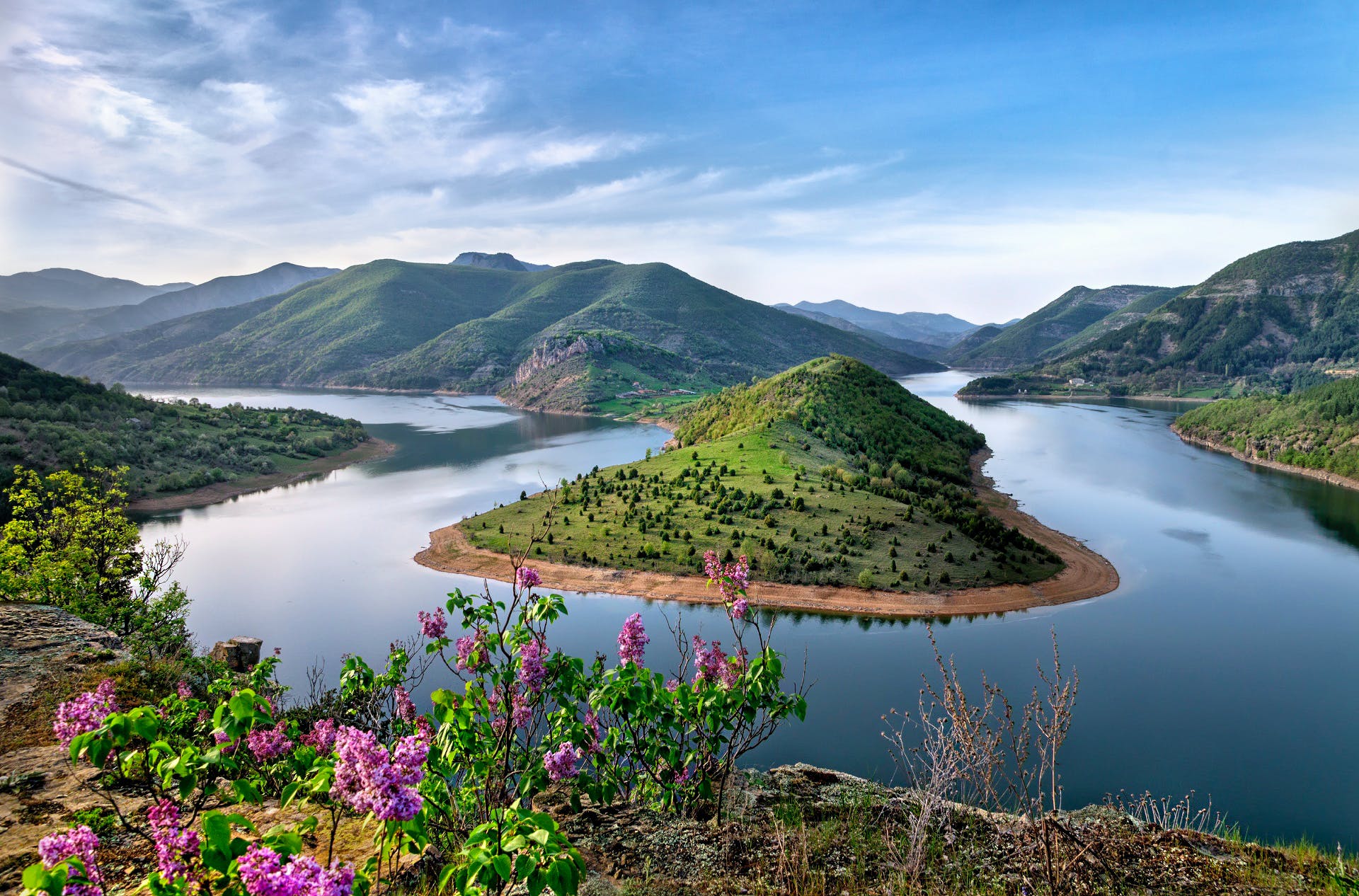
A strong social crop keeps the subject clear at a glance and leaves enough breathing room for interface elements, captions, and platform previews. Instead of forcing one crop everywhere, create a small set of versions from the same high-resolution original.
Understand the useful ratios
- 1:1 square is dependable for profile images and grid-based posts.
- 4:5 portrait uses more vertical feed space while remaining easy to scan.
- 9:16 vertical is designed for Stories, Reels, Shorts, and TikTok-style video or imagery.
- 16:9 landscape suits widescreen video, presentations, and many thumbnail layouts.
The social media size library opens canvases with practical preset dimensions, while the photo editor gives you direct crop controls.
Protect the focal point
Place the person, product, or key action away from edges that may be clipped in previews. For a portrait, keep the eyes comfortably inside the frame. For a product, preserve enough surrounding space to show its shape. If the image includes text, keep it within a central safe area rather than touching the top or bottom edge.
Create multiple crops efficiently
- Open the largest available original.
- Make the widest crop first and export it with a clear filename.
- Return to the original before creating the portrait version.
- Reposition the subject for each ratio instead of accepting an automatic center crop.
- Check the composition at a small preview size.
- Export each version once in the required format.
Useful filenames such as `campaign-square.jpg`, `campaign-portrait.jpg`, and `campaign-story.jpg` prevent the versions from becoming mixed up.
When the crop feels too tight
Some photos simply do not contain enough room for every ratio. A solid or blurred background can fill unused canvas space without cutting into the subject. For a designed post, open a preset in the social design tool, add the original image as an element, and use the background area for supporting color or text.
Always review the final crop on a phone. A composition that looks balanced on a large monitor can feel crowded when reduced to a feed card. The best crop is not merely technically correct; it directs attention immediately and remains readable in its real context.
Using AI crop suggestions responsibly
AI subject detection can suggest a focal area and generate quick crops for several ratios. It can also miss a secondary person, cut through a product, or place interface text over an important detail. Review every suggested crop manually, especially 9:16 designs where platform controls occupy the edges. PixelCraft's ratio presets and crop controls let you make that final composition deliberately.